
A DoorDash Merchant Temporary Deactivation Needs a Store-Status File Before Support
A DoorDash merchant temporary deactivation needs a store-status diagnosis, order and device evidence, reason-matched corrections, controlled support follow-up, and operating continuity.
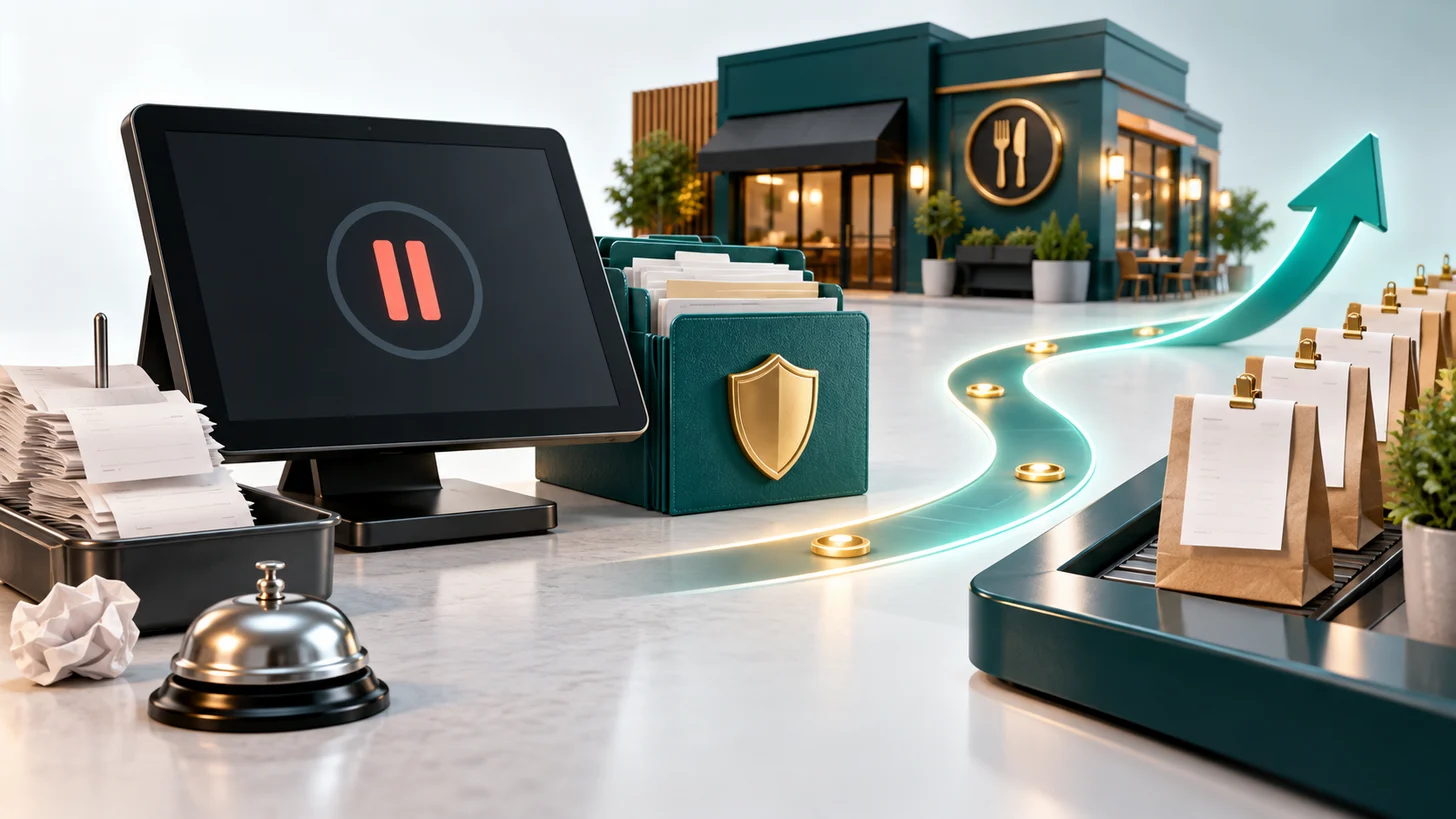
A temporary deactivation becomes controllable when the operator can show the store status, affected orders, order-reception path, root cause, completed correction, and verified reopening test.
When a DoorDash merchant store is temporarily deactivated or unavailable, first identify the exact status in the Merchant Portal, Business Manager app, tablet, POS, and customer-facing listing. Check the affected order window, cancellations, avoidable waits, missed orders, device connectivity, integration errors, menu availability, and store hours. Correct the actual trigger before using the available reopen control or contacting Merchant Support.
Do not confuse a merchant store pause with a Dasher account deactivation, permanently inactive store, closed hours, or voluntary shutdown. Reopening without fixing a broken tablet, POS connection, menu, inventory, or kitchen-capacity problem can repeat the event and create more customer obligations.
The DoorDash Merchant Temporary Deactivation Recovery Kit adds editable status, order, device, menu, hours, root-cause, support, reopening, continuity, and monitoring controls when a location cannot afford another failed restart.
Classify the store state before troubleshooting
| Observed state | Likely control lane | First check |
|---|---|---|
| Paused during open hours | Manual pause, automatic operational pause, avoidable wait, or short recovery window. | Portal or app status, pause reason, recent wait events, and who can reopen. |
| Temporarily deactivated | Repeated cancellations, order-reception failures, hours or menu mismatch, or another operations signal. | Affected order window, alerts, device or POS history, and correction required. |
| Orders never reach the store | Tablet connectivity, POS integration, printer, credentials, heartbeat, or routing. | Test order path, device status, integration logs, and POS provider case. |
| Closed or unavailable to customers | Regular hours, special hours, closure, service area, item availability, or store status. | Customer-facing listing versus Portal, app, tablet, and POS settings. |
| Inactive or permanently deactivated | Activation, account, contract, or final status rather than a temporary operations pause. | Authenticated notice and Merchant Support path; do not force a temporary-pause workflow. |
DoorDash's current merchant order-management guidance explains that high avoidable wait times can automatically pause orders and that too many merchant-initiated cancellations may lead to temporary deactivation. It also says POS-integrated merchants should use the POS to pause orders and contact the POS provider when the integration fails.
The current Business Manager app guidance distinguishes open, paused, closed, inactive, and deactivated states and allows an authorized merchant to reopen a paused store. Interfaces and account options can change, so use the authenticated status and controls available for the affected location.
Build the recovery around four controls
The manager reopens immediately, but the POS is still disconnected, sold-out items remain live, and the next orders fail again.
The operator reconciles the trigger, fixes reception and availability, confirms capacity, reopens through the merchant control, and monitors the first orders.
Copy this store recovery row
DoorDash temporary deactivation record
Business, location, and store ID: [details]
Status first seen, channel, and timestamp: [details]
Portal, app, tablet, POS, and customer-listing states: [values]
Alert, reason, or support wording: [exact internal note]
Affected order period and order IDs: [details]
Cancellations, avoidable waits, missed orders, or reception errors: [facts]
Hours, special hours, menu, and item availability checked: [result]
Tablet, printer, network, POS, and integration checked: [result]
Root cause supported by records: [fact or unknown]
Correction completed, owner, and timestamp: [details]
Reopen control or support case: [path and reference]
First-order test and result: [details]
Customer, refund, inventory, staffing, and cash decisions: [status]
Next monitoring check and closeout proof: [details]
Use a reason-matched Merchant Support note
We are the authorized operator for [business, location, and store ID]. The authenticated merchant tools showed [exact status] beginning [date and time]. Our review of [order window] identified [supported issue or unresolved signal]. We completed [hours, menu, item, device, POS, integration, staffing, or process correction] on [timestamp] and verified [test]. Please confirm the current store status, identify any specific remaining item, and state the authorized reopen or review step for this location under case [reference].
Get the free Emergency Triage Sheet
The first three moves for any business emergency, plus one practical fix in your inbox each week.
No spam. Unsubscribe anytime.
Worked example: the POS stopped acknowledging orders
A hypothetical restaurant appears open in its POS but unavailable on DoorDash. The shift manager first tries to reopen repeatedly. The operations lead instead records the store state across the Portal, app, and POS, then finds a cluster of missed orders after an integration credential changed. The menu and hours are correct, but the POS stopped acknowledging incoming orders.
The team opens a case with the POS provider, restores the integration, confirms the tablet fallback and staff alert path, reconciles customer refunds, and uses the authorized merchant control after the order path is tested. A manager monitors the first orders and records acceptance, prep, and handoff. The example demonstrates a recovery sequence, not a promise that every temporary deactivation has the same cause or resolution.
DoorDash merchant recovery checklist
- Record the exact store status, affected location, timestamp, and authenticated source.
- Compare Merchant Portal, Business Manager app, tablet, POS, and customer-facing listing.
- Export or log affected orders, cancellations, waits, missed orders, refunds, and support references.
- Test tablet, network, printer, notifications, POS credentials, integration, and fallback order path.
- Align regular hours, special hours, menu, item availability, prep times, staffing, and kitchen capacity.
- Record the source-backed root cause or mark it unknown rather than guessing.
- Complete and verify the correction before reopening.
- Use the authorized merchant control or Merchant Support case for the status shown.
- Assign one owner to monitor the first live orders after reopening.
- Close customer, refund, inventory, staffing, cash, and prevention actions separately.
FAQ: is this the same as a DoorDash driver deactivation?
No. This workflow is for a merchant store's availability and order operations. Dasher or driver account deactivation has separate policies, evidence, and appeal channels. Use the merchant Portal, Business Manager app, tablet, POS provider, and Merchant Support paths tied to the store.
Connect the incident to restaurant controls
If another delivery platform also restricts the location, keep it in a separate Uber Eats merchant appeal file so reasons and cases do not get mixed. If the trigger exposes recurring customer-resolution gaps, use the owner callback workflow. If capacity failed because critical equipment went down, use the equipment breakdown continuity plan.
Free version vs. full kit
This article gives you the free version: state table, four controls, recovery row, support note, worked example, and checklist. The paid kit adds editable status, order, device, POS, menu, hours, root-cause, support, reopening, continuity, monitoring, and closeout tools.
Run the recovery with the DoorDash Merchant Temporary Deactivation Recovery Kit
The All-Access membership includes the full kit library while membership is active. The one-time DoorDash recovery kit remains the primary next step for this article.
Fix the next one before it starts.
Join the list for the free Emergency Triage Sheet and a new practical fix every week.
No spam. Unsubscribe anytime.